Guide
Using Panelet
Set it up, build your first workspace, and learn the commands and shortcuts that make it fast. Everything here matches the current version, Panelet 1.3.0.
Set up
From install to your first workspace.
Set Panelet up in about a minute — a first-run guide walks you through it — then run your workspaces from the menu bar or a keyboard shortcut.
- 1
Install & open
Move Panelet to Applications and launch it — it lives in your menu bar. If the notch or a crowded menu bar hides the icon, open Panelet again from Applications or Spotlight and Settings comes up.
- 2
Grant Accessibility access
Approve the macOS Accessibility permission so Panelet can move and place your app windows.
- 3
Create a workspace
Choose “New Workspace…” — the builder opens with the windows you already have open, arranged in the layout you pick. Swap any pane for a different app.
- 4
Resize it
Drag the dividers to size each pane. The proportions stick on their own — “Save Current Layout” is for when you have moved the windows around by hand and want that to become the default.
- 5
Bring it back anytime
From the menu bar — or a keyboard shortcut — show, hide, restore, maximize, or send the workspace to your current display.
The workspace menu
Everything a workspace can do, in one menu.
Right-click the handle at the top of any group — or open This Workspace from the menu bar. Same list, both places.
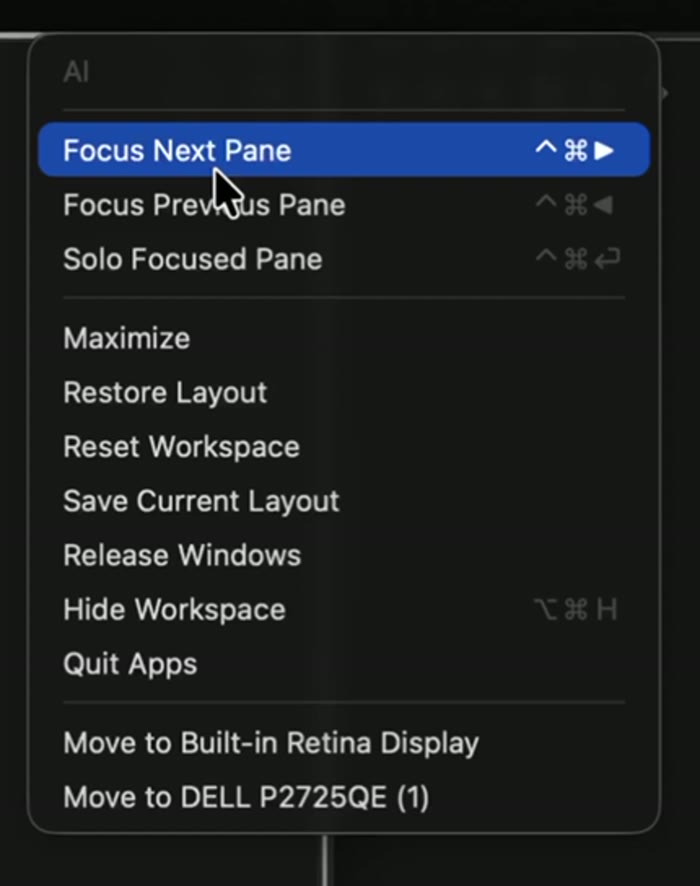
Move around inside it
- Focus Next / Previous Pane⌃⌘← →
- Move the keyboard between the apps in the group without reaching for the mouse or Command-Tab.
- Solo Focused Pane⌃⌘↩
- Blow one pane up to fill the whole workspace, then press again to drop it back into the layout — the other windows are never disturbed.
Change its shape
- Maximize
- Grow the whole group to fill the display it is on, keeping the split you set.
- Restore Layout
- Snap every window back into its pane after you have dragged them around by hand.
- Save Current Layout
- Make the arrangement you just dragged into place the one this workspace opens with from now on.
- Reset Workspace
- Throw away your adjustments and return to the layout’s default split.
Put it away — three ways, gentlest first
- Release Windows
- Let go of this group. Every window stays exactly where it is on screen, free to move and resize like any other window. Showing the workspace again puts them back.
- Hide Workspace⌥⌘H
- Tuck the whole group out of sight in one keystroke. Nothing quits; one click brings it all back.
- Quit Apps
- Close the apps in this workspace when you are properly finished with them.
Send it somewhere else
- Move to <display>⌥⌘B
- Send the entire group to another monitor as one object, split and proportions intact — no re-dragging window by window.
Coding agents
Running coding agents
A common setup is three columns: your editor, a terminal running a coding agent, and a browser preview. Build it once and it comes back with one shortcut. If you run several agents at once, Poppet lets you know which one is waiting for you.